
Download ScreenCapture – Portable, Lightweight Screenshot Tool for Windows, Mac, and Android
Looking for a free, secure, and portable screenshot tool? ScreenCapture is a minimal yet effective software designed for users who need quick, no-frills screen captures without installation. This lightweight app runs directly from a USB drive, making it perfect for on-the-go use across multiple devices.
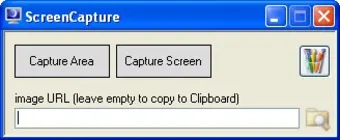
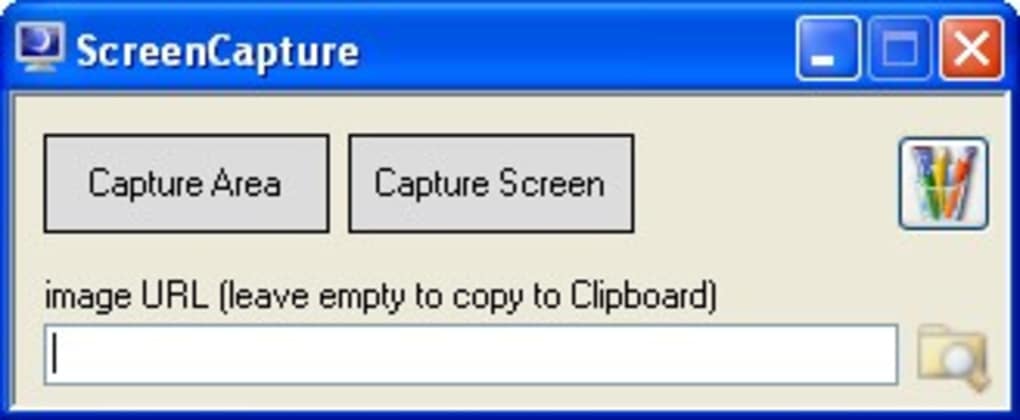
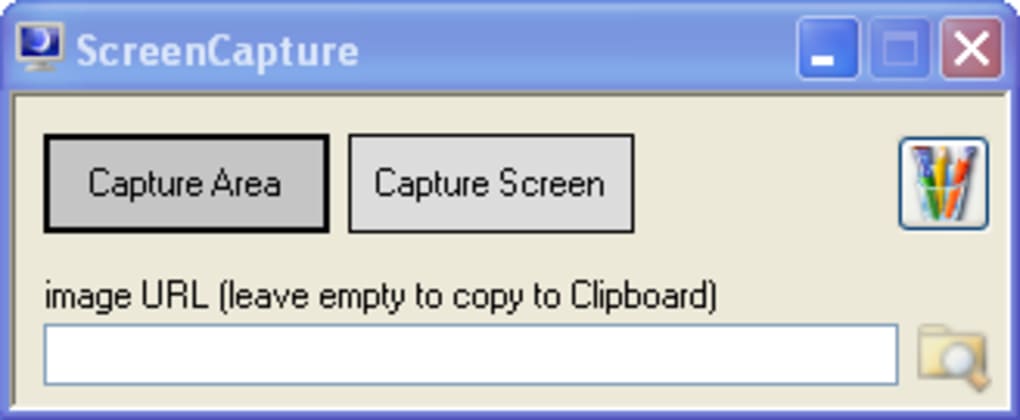
With just two simple buttons—Capture Area and Capture Screen—ScreenCapture delivers instant screenshots that are automatically saved to your clipboard. Whether you're troubleshooting, sharing instructions, or documenting a process, this tool gets the job done with zero setup. While it lacks advanced editing features and system tray integration, its simplicity makes it ideal for users who value speed and portability over customization.
Download ScreenCapture today and experience a streamlined way to capture your screen—no installation, no clutter, just fast results.
Key Features of ScreenCapture
ScreenCapture stands out in a crowded market of screenshot tools thanks to its minimalist design and portability. Here’s what this compact software offers:
- Portable & No Installation Required: Run ScreenCapture directly from a USB drive or any folder. No registry entries or system changes—perfect for shared computers or temporary use.
- Lightweight Performance: At just a few megabytes, this app loads instantly and uses minimal system resources, making it ideal for older machines or low-end devices.
- Two Simple Capture Modes: Choose between Capture Area (select a custom region) or Capture Screen (full-screen capture) with a single click.
- Clipboard Integration: All screenshots are automatically copied to the clipboard, allowing seamless pasting into emails, documents, or messaging apps.
- Quick Access to Paint: A built-in button opens Microsoft Paint for basic editing, saving, or sharing—though advanced editing is not supported.
- Universal Compatibility: Works on Windows, Mac, and Android devices, ensuring consistent performance across platforms.
Why ScreenCapture Works for Basic Users
For users who need a straightforward way to capture the screen without distractions, ScreenCapture delivers exactly what it promises: simplicity. Unlike bloated software with dozens of settings, this tool focuses on one core function—taking screenshots—and does it efficiently. The absence of options, preferences, or background processes means there’s less room for errors or confusion. This makes it especially useful for non-technical users, students, or professionals who need to share quick visuals without delays.
Another major advantage is its portability. You can carry ScreenCapture on a USB stick and use it on any computer, whether at work, school, or a friend’s house. No need to install software or worry about permissions. This is a game-changer for IT support staff, trainers, or anyone who frequently works across different machines. The tool also doesn’t leave traces behind, ensuring privacy and security—no temporary files or logs are created.
While it doesn’t support saving files directly to your hard drive or offer advanced editing, the clipboard integration is fast and reliable. Paste your screenshot into any application instantly, and if you need to make minor adjustments, the one-click Paint launch provides a basic editing path. It’s not a replacement for professional tools like Snagit or Greenshot, but for quick, one-off captures, it’s more than sufficient.
How to Install and Use ScreenCapture
One of the biggest benefits of ScreenCapture is its zero-install setup. Here’s how to get started in just a few steps:
- Download the App: Visit the official website or trusted software repository to download the ScreenCapture executable file. It’s typically a .exe file for Windows, a .dmg for Mac, or a compatible APK for Android.
- Extract the File: If downloaded as a ZIP archive, extract the contents to your preferred folder—such as a USB drive, desktop, or Documents folder.
- Run the Application: Double-click the ScreenCapture executable to launch the tool. No installation wizard, no setup prompts—just the clean interface appears immediately.
- Take a Screenshot: Click either Capture Area or Capture Screen. Use your mouse to select the desired region or capture the entire screen.
- Paste Your Image: The screenshot is automatically copied to the clipboard. Open any app (Word, email, messaging tool) and press Ctrl+V to paste.
- Use Paint for Editing (Optional): Click the Open Paint button to edit the image. You can crop, draw, or annotate before saving or sharing.
Since ScreenCapture doesn’t require admin rights, it’s perfect for public computers or locked-down environments. It also doesn’t interfere with other apps or background processes, ensuring a smooth user experience. The tool is designed to be used and closed immediately—no lingering tasks or system impact.
Compatibility & System Requirements
ScreenCapture is built to work across multiple platforms, making it a versatile choice for users with diverse devices:
- Operating Systems: Compatible with Windows 7 and later, macOS 10.12+, and Android 5.0+.
- Hardware Requirements: Requires minimal resources—less than 50 MB of RAM and a standard graphics card. Runs smoothly on older laptops and netbooks.
- Device Support: Works on desktops, laptops, tablets, and even some smart displays with touchscreens.
- Network & Security: No internet connection is required. All captures remain local, ensuring data privacy and security.
Because it’s a standalone executable, ScreenCapture avoids compatibility issues that plague many software installers. It doesn’t rely on external libraries or runtime environments, so it runs reliably on most systems. This makes it an excellent choice for users in educational institutions, corporate IT departments, or anyone who values software stability.
Pros and Cons of ScreenCapture
Pros
- ✅ Completely portable – Run from USB or any folder without installation.
- ✅ Extremely lightweight – Minimal system impact and fast startup.
- ✅ Simple, intuitive interface – No learning curve; ideal for beginners.
- ✅ Secure and private – No data sent online; all captures stay local.
- ✅ Free to download and use – No hidden fees or trial limits.
Cons
- ❌ No direct file saving – Screenshots only go to clipboard; no option to save automatically.
- ❌ Limited editing tools – Relies on Paint, which lacks modern features.
- ❌ No system tray/minimize option – Cannot hide the app; must be closed after use.
- ❌ No customization options – No hotkeys, delays, or capture settings.
- ❌ Outdated interface – Basic design may feel unpolished to modern users.
Frequently Asked Questions (FAQ)
Is ScreenCapture free to download and use?
Yes, ScreenCapture is completely free to download and use. There are no trial periods, subscription fees, or hidden charges. It’s a no-cost solution for basic screenshot needs.
Can I run ScreenCapture from a USB drive?
Absolutely. ScreenCapture is designed to be portable. Simply extract the files to a USB drive and run the executable from any computer. No installation is required.
Does ScreenCapture support Android devices?
Yes, ScreenCapture is compatible with Android 5.0 and above. You can download the APK version and install it directly on your tablet or smartphone for on-the-go captures.
Why doesn’t ScreenCapture save files directly?
The app is intentionally minimal. All screenshots are sent to the clipboard to keep the software lightweight and fast. You can paste and save manually in any application.
Is ScreenCapture safe to use?
Yes, ScreenCapture is safe and secure. It doesn’t require admin rights, doesn’t collect data, and runs offline. No malware or tracking is associated with the official version.
Final Verdict: Is ScreenCapture Worth It?
ScreenCapture is not the most powerful screenshot tool on the market, but it excels in one crucial area: simplicity and portability. If you need a secure, free, and lightweight app that you can carry on a USB and use instantly on any Windows, Mac, or Android device, this tool is a solid choice. It’s perfect for quick captures, sharing troubleshooting steps, or creating documentation without the hassle of installation.
However, if you need advanced features like automatic file saving, hotkey support, image editing, or video recording, you’ll want to consider alternatives like Greenshot, Snagit, or Lightshot. For those who value minimalism and ease of access over functionality, ScreenCapture delivers exactly what it promises.
Download ScreenCapture today and experience a no-strings-attached way to capture your screen. Whether you’re a student, teacher, or IT professional, this tool is a reliable companion for quick, on-the-go screenshots.







